
Asic Boost custom firmware for Antminer S19 with 88 chips
BUILDAntminer S19 (88)·XIL·NAND·…·…·
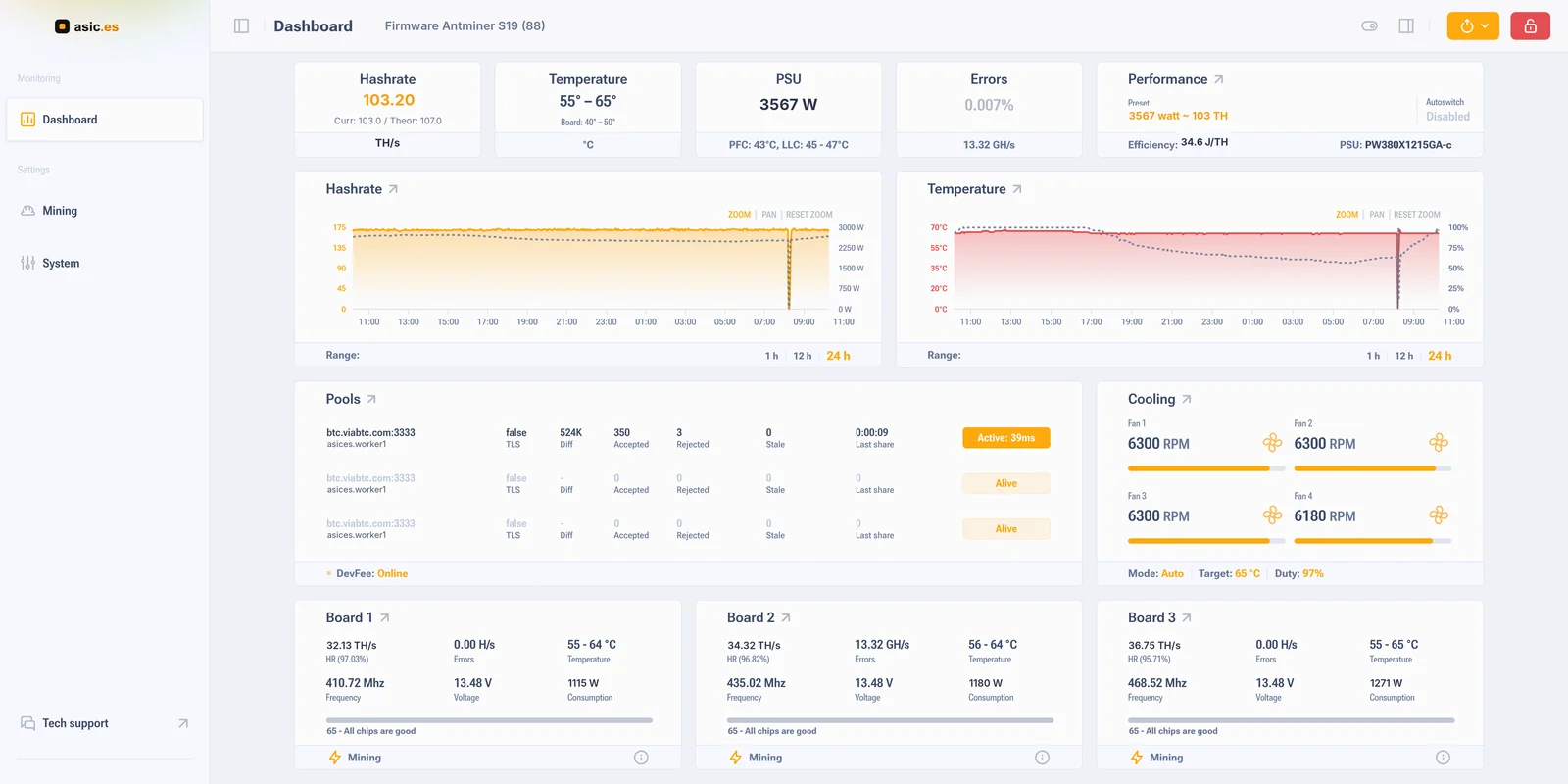
Asic Boost: custom firmware for the ASIC miner Antminer S19 (88). You set the balance between hashrate and power consumption yourself, from ~1500 W in economy mode with undervolt to 4000 W and 110 TH/s in overclock. Built-in autotune, power profiles, frequency and voltage control, pool management and real-time web monitoring.
Asic Boost firmware overview for Antminer S19 (88)
The AsicBoost firmware removes the factory limits of the Antminer S19 (88): you set frequency and voltage per hashboard, not the factory. Four control boards are supported, XIL, AML, CV and BB: with installation to the NAND partition. The «(88)» in the model name indicates 88 chips per hash board.
Features
Frequency and voltage are set separately for each hashboard, to match your power supply and cooling.
Ready-made profiles: efficiency, balance and overclock switch in a couple of clicks.
Autotune picks stable chip parameters on its own.
Real-time web monitoring: hashrate, temperatures, fan speeds, hashboard status.
Fans: manual and auto modes, target temperature, minimum speed and quiet mode.
If the chips or a hashboard overheat, the firmware throttles them, and in the worst case shuts the miner down.
Event log, statistics and an API for integration with monitoring systems.
The web interface password is changed from the firmware itself.
Quick install from scratch (NAND) without soldering, with the option to return to factory firmware.
Performance gain and efficiency
In overclock mode the firmware can raise performance to roughly
110 TH/s, which is about +28% versus the factory 86 TH/s. In efficiency mode you can bring efficiency down to ≈23.4 W/TH against ~34.3 W/TH on stock, a saving of about 10.9 W/TH (about −32% energy per terahash). Exact figures depend on chip quality, power and cooling of your farm.
Compatibility
The firmware is intended only for the Antminer S19 (88) on any of the control boards (XIL, AML, CV or BB). Installing a build for a different model or platform may render the miner inoperable, so check your device version in advance. Not sure? See how to identify the version.
Installation
Download the archive, unpack it and upload the file through the miner's web interface following the step-by-step installation guide.
For convenient discovery of miners on the network and batch flashing, use the
HashCore ToolKit.
Power profiles: overclocking and efficiency
The firmware lets you set a target power consumption for the Antminer S19 (88) from economical undervolt modes to overclocking. Below are approximate "consumption → hashrate" profiles. Numbers differ from machine to machine: chips are not identical.
Efficiency (W/TH): the lower, the better.
Frequently asked questions about Antminer S19 (88) firmware
Is custom firmware safe and won't it brick the miner?
The firmware is installed to the NAND partition, and you can roll back to the factory one from the web interface: the steps are below in this same FAQ. The key is to install a build strictly for your model and platform (Antminer S19 (88), XIL, AML, CV or BB board) and to follow the guide. Check your device version before installing.
Asic Boost or AsicBoost, and why do people search for it as Vnish?
Our firmware name is written both as one word and as two: AsicBoost and Asic Boost are the same thing, there is no difference between the two forms. Some users look for custom Antminer firmware using the word Vnish. Both come from Hashcore, they are just aimed at different markets. Vnish is built for Russia and the post-Soviet countries, AsicBoost for Spain and the European Union: different servers and its own support team working European hours and languages. If you live or work in Europe, take AsicBoost, it is the build made for this market. In the build for Antminer S19 (88): autotuning, power profiles, pool and cooling management, DevFee 2.8%.
What is the DevFee and why is it more profitable than stock firmware?
The firmware developer fee is 2.8% of the hashrate: it pays for autotune, power profiles, monitoring, pool management and support. Stock firmware formally runs with no fee, but rigidly limits the miner to fixed parameters. Custom firmware removes those limits, and even after the 2.8% you still come out ahead:
At overclock the S19 (88) delivers up to 110 TH/s. Even after DevFee that is ≈107 TH/s net, about +24% versus the factory 86 TH/s.
In economy mode efficiency improves to ~23.4 W/TH versus ~34.3 on stock. The electricity savings clearly exceed 2.8% of the hashrate.
Calculate the exact benefit for your tariff in the mining calculator.
How do I roll back to factory firmware?
Enter the miner's IP address in the browser address bar.
Log in with the administrator password (admin by default).
In the left menu go to "System" → "General" → "Backup and restore".
Select "Return to stock firmware" and click "Reset to stock".
Confirm the action in the dialog. If needed, tick "Delete stock logs".
Wait until the miner restores and reboots.
After that the miner runs on the factory (stock) firmware.
Note: while the restore is running, do not switch off the power and do not close the page.
Will the firmware fit my Antminer S19 (88)?
The build is intended for the Antminer S19 (88) on any of the control boards (XIL, AML, CV, BB). If you are not sure of your device version, use the "how to identify the version" guide; the link is in the "Compatibility" section.
How do I install the firmware?
Through the miner's web interface: upload the .tar.gz archive as described in the guide. The full step-by-step documentation is linked on this page.
What is the default administrator password?
After installing the firmware, the default administrator password is: admin. In Bitmain factory firmware the default login is root and the password is root. Change it right after the first login.
Open the miner's IP address in a browser.
Log in with the administrator password admin.
In the left menu go to "System" → "Security" → "Change access password".
In the dialog that opens, enter the current password and set a new one.
Click "Save" in the top right corner to apply the changes.
Make the password long, with digits and symbols: the miner is visible to everyone on that network.
How do I find an ASIC miner on the local network?
The miner answers at the address its router gave it. You can find that address with any network scanner or with the HashCore ToolKit utility.
Using HashCore ToolKit
HashCore ToolKit automatically discovers devices on the local network and detects their IP addresses.
Download and install the HashCore ToolKit application.
Connect the computer and the ASIC miner to the same local network.
Launch the application and run a device search.
Wait for the scan to finish.
In the list, find your miner and note its IP address.
Open that address in a browser, or manage the miner straight from the HashCore ToolKit interface.
What if I have questions?
Message our Telegram support group (the Support button at the bottom of the page); we'll help with choosing a build, installation and tuning power profiles. You can also reach us via the Contacts section.
Antminer S19 (88) profitability
Profit per month
Eco
64 TH/s
…USDT
… USDT per day, … BTC per month
AsicBoost firmware, energy efficiency
Stock
86 TH/s
…USDT
… USDT per day, … BTC per month
Bitmain factory firmware
+28% vs stock
Overclock
110 TH/s
…USDT
… USDT per day, … BTC per month
AsicBoost firmware
TH/s
Loading network data…
Algorithm SHA-256. Electricity cost is not included.
Run a large ASIC fleet? We'll build you a custom firmware
with your logo and your chosen DevFee percentage. And if you want to distribute firmware under your own brand, we'll onboard you as a distributor partner.
Your logo Your DevFee % Customization 24/7 support