


Installing AsicBoost firmware with HashCore Toolkit
AsicBoost · HashCore Toolkit
Flashing Antminer over the network in ten steps
The app, the IP range, choosing the build and following the install in Operations.
This is a step-by-step guide to installing AsicBoost firmware on Bitmain Antminer miners with HashCore Toolkit. It shows how to download the tool for your system, find miners on the network by IP range and write the firmware straight to the device memory, without opening the case or dealing with SD cards. Below you will find all installation steps, model compatibility and fixes for common errors.
Download HashCore Toolkit for your OS:
Firmware installation with Toolkit in 37 seconds: network scan, folder with the files, build name and start.
What to prepare before you start
The installation runs over the network, so the computer with the Toolkit and the miners must be on the same local network. Four things are worth having ready before you open the app.
IP range and miner password. The Toolkit looks for devices across a range of addresses, so you need to know that range in advance. The miner password is set in the group settings. If you changed the root password on the devices, be sure to enable "Custom password for unlock device", otherwise the scan will find the miner but will not be able to work with it.
Control board type. Every board has its own firmware build: XIL, BB, AML or CV. You can identify the board by the markings on the case or the chip, but it is more reliable to let the Toolkit do it: it detects the board while scanning the network and shows it next to the model.
The firmware file for your model and board. Download it from the firmware catalog on asic.es. There is no need to unpack the archive, the Toolkit works with it as is. Check the file name to be sure the build is yours: it lists the brand, model, board, method, version and type in that order, for example Antminer-t21-aml-nand-v1.3.5-install.tar.gz. Download only from the official source: third party builds are known to carry hidden fees and malicious code.
The stock firmware date. It decides whether the firmware installs directly. Stock up to 28.02.2024 or from 01.12.2024 to 28.09.2025 flashes right away. Stock from March to November 2024 needs an SD rollback. Stock from 29.09.2025 and newer still rolls back over SD on XIL, BB and CV boards, while on AML boards with FR 1.20 and newer both SSH and the rollback are closed, and only a hardware unlock over UART helps.
Step-by-step installation
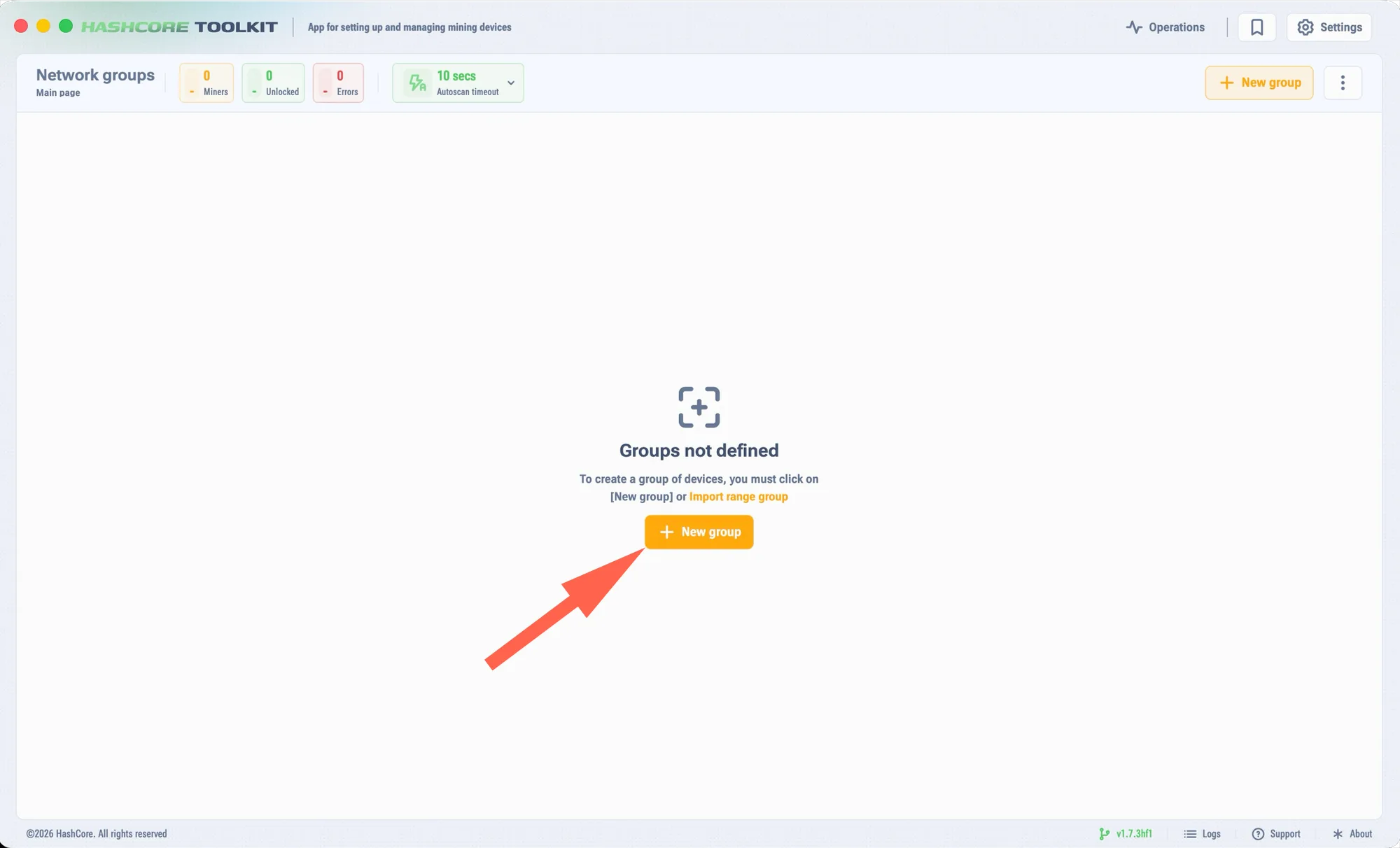
Download and unpack the latest version of HashCore Toolkit, open it and click "New ranges group".
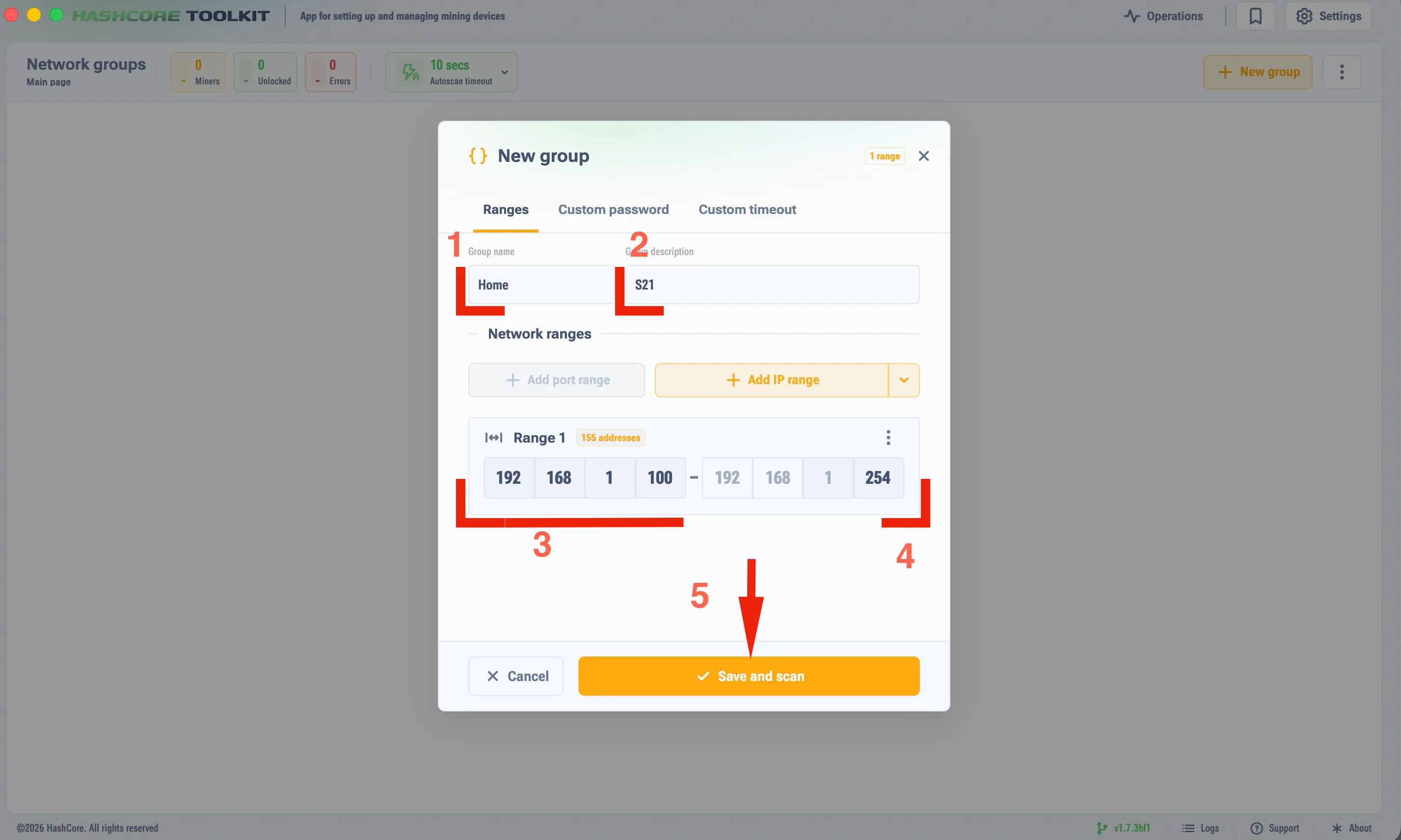
Create an IP range group: set the name in "Group Name", the description in "Group description" and the IP range itself. Click "Save and scan" and wait for the network scan to finish.
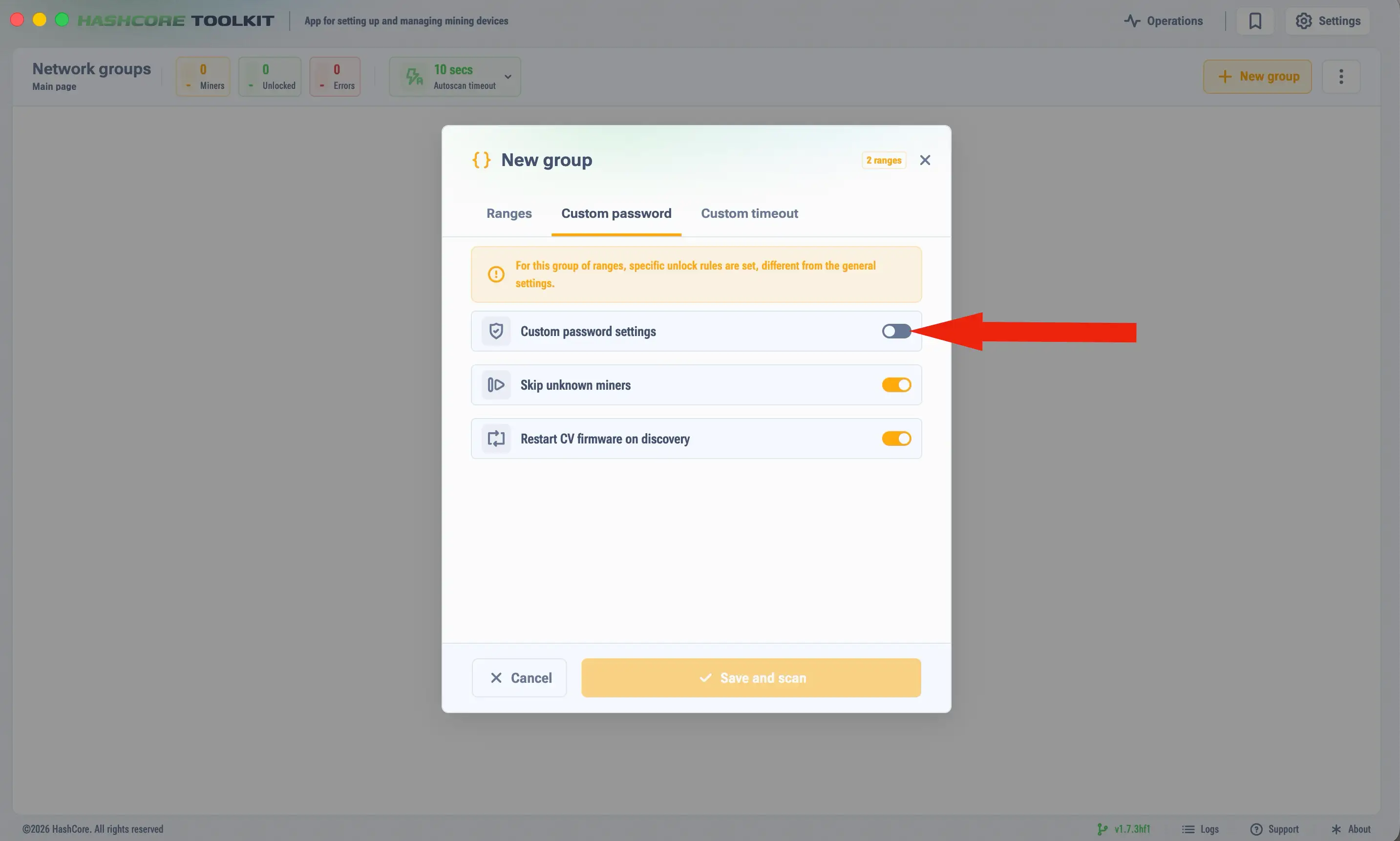
If you changed the root password on the miners, open the "Custom password" tab and enable "Custom password for unlock device". If you have not changed the stock root password, go straight to item 5 "Open group".
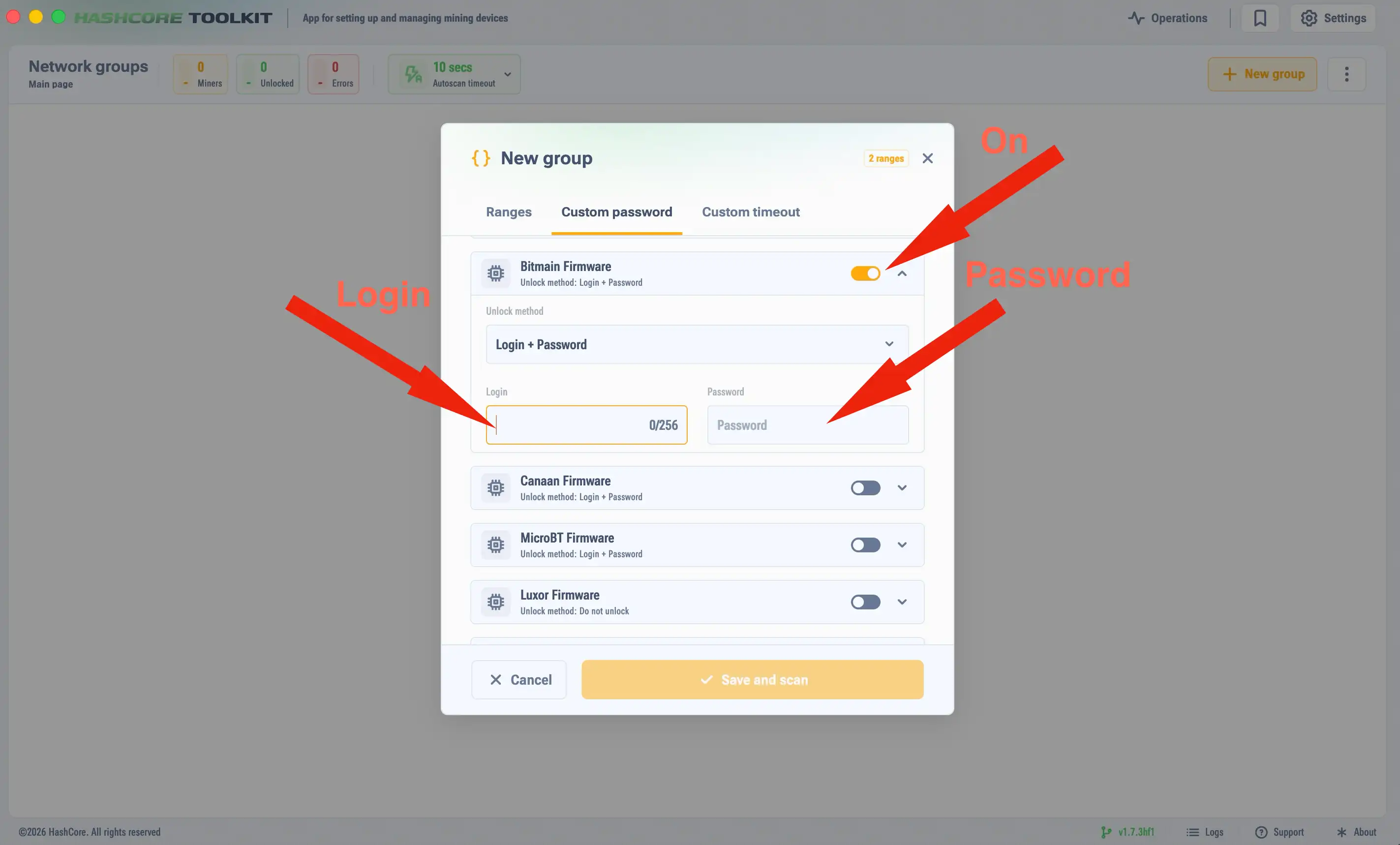
Scroll down, enable "Bitmain firmware" and set the miner password in the dropdown menu.
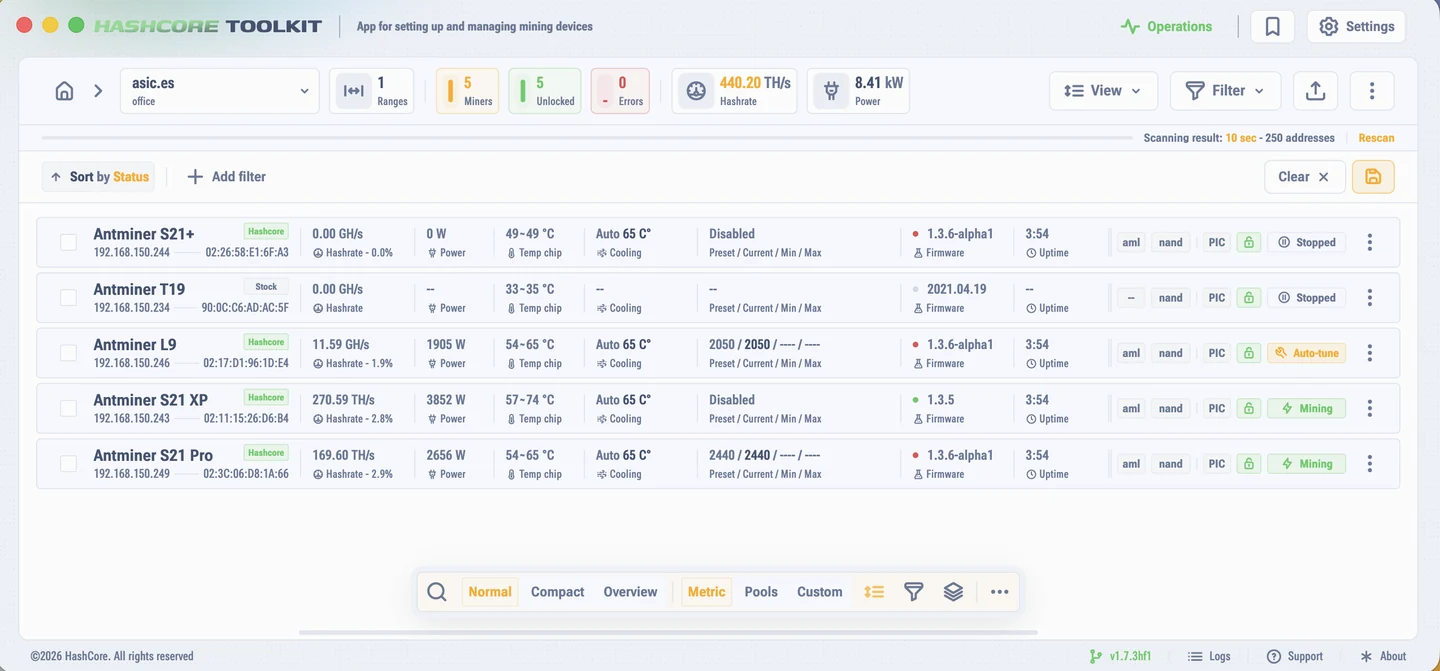
Click "Open group" to see the miners found in the range.
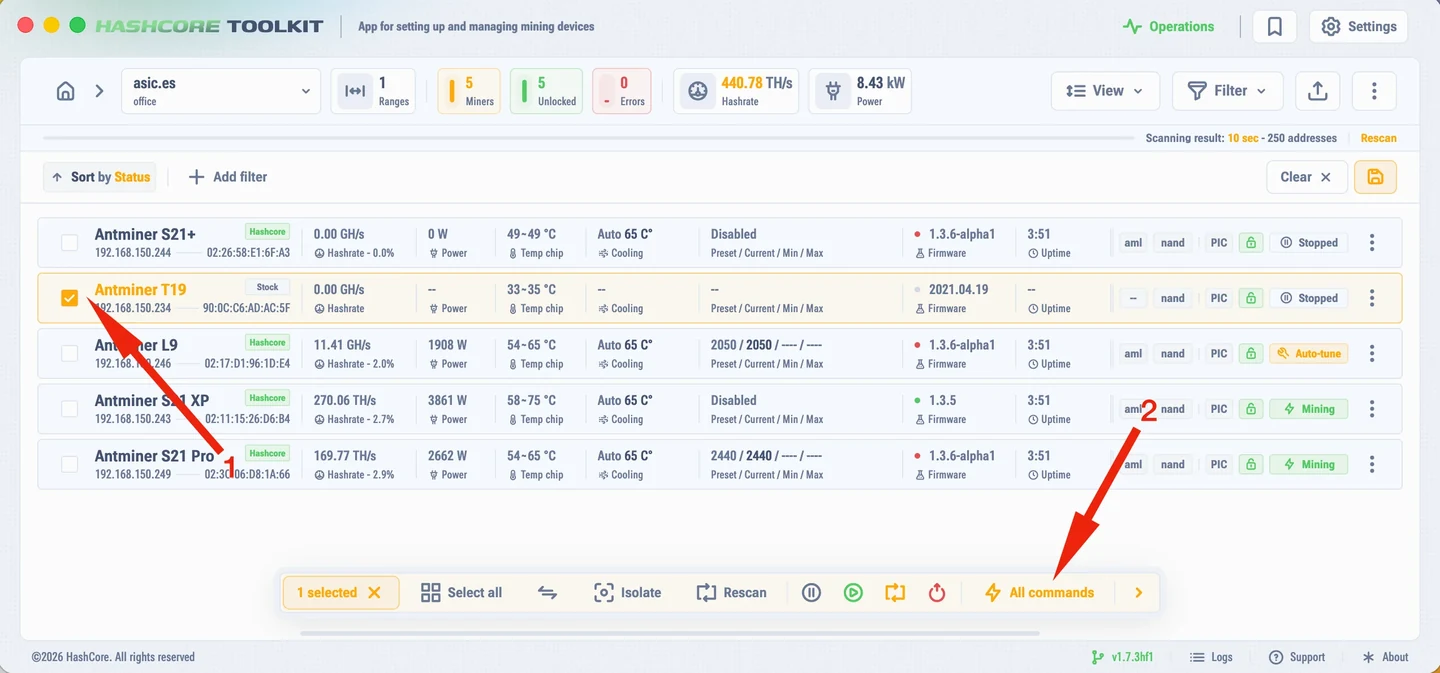
Select the miner you need and open "Commands".
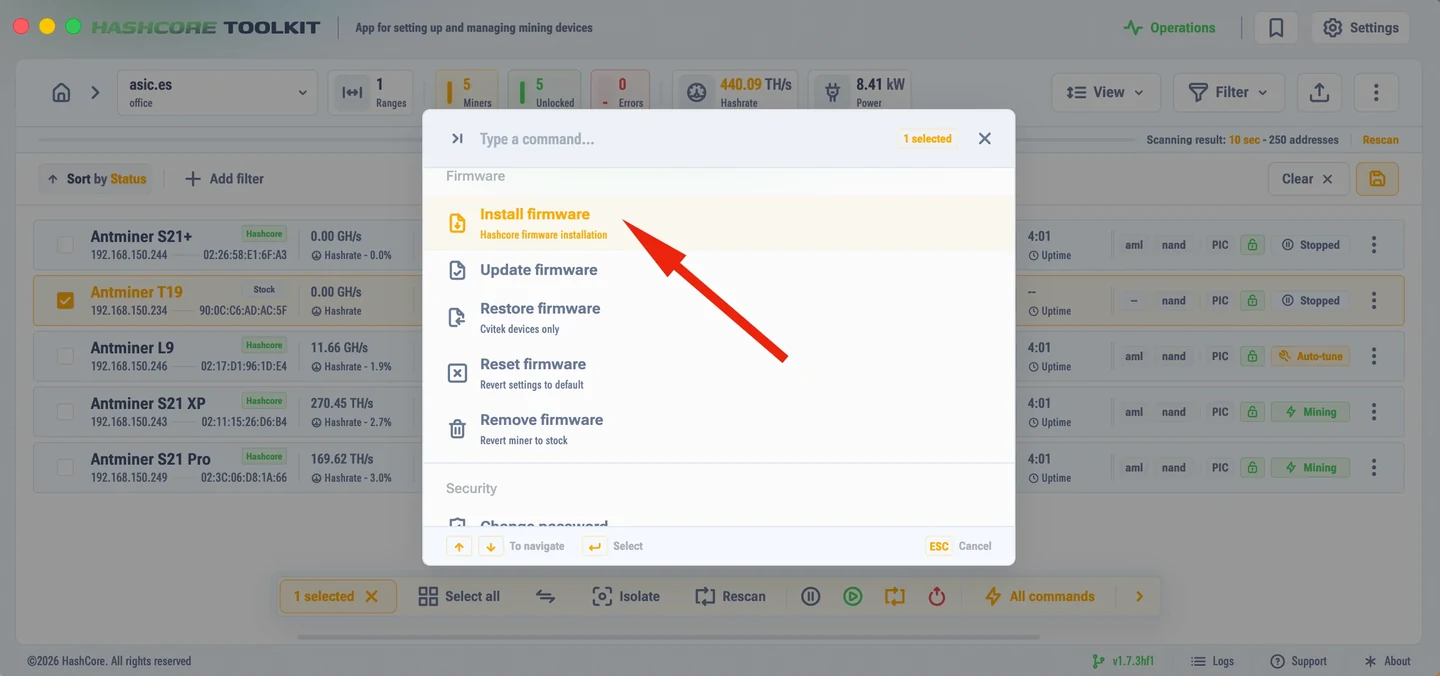
On the commands page click "Install the firmware".
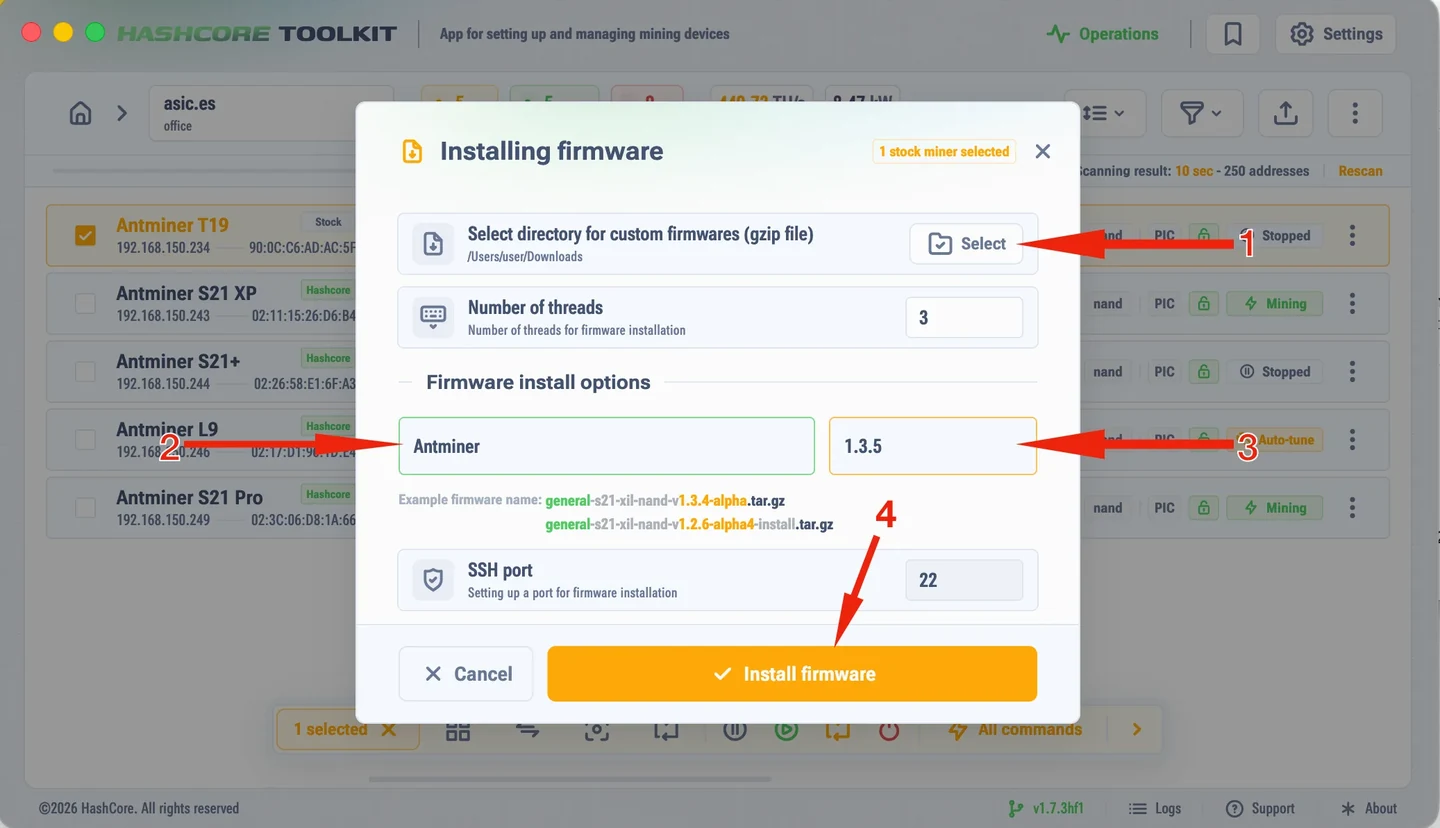
Click "Select" and point to the folder with the firmware file. The file itself is not shown in the list, that is normal, and you do not need to unpack the firmware archive. Fill in the fields: for example, for Antminer-t21-aml-nand-v1.3.5-install.tar.gz set the firmware name antminer and version 1.3.5. Click "Install the firmware".
Open the "Operations" section and follow the installation progress. If an error occurs, the Toolkit shows a decoded message.
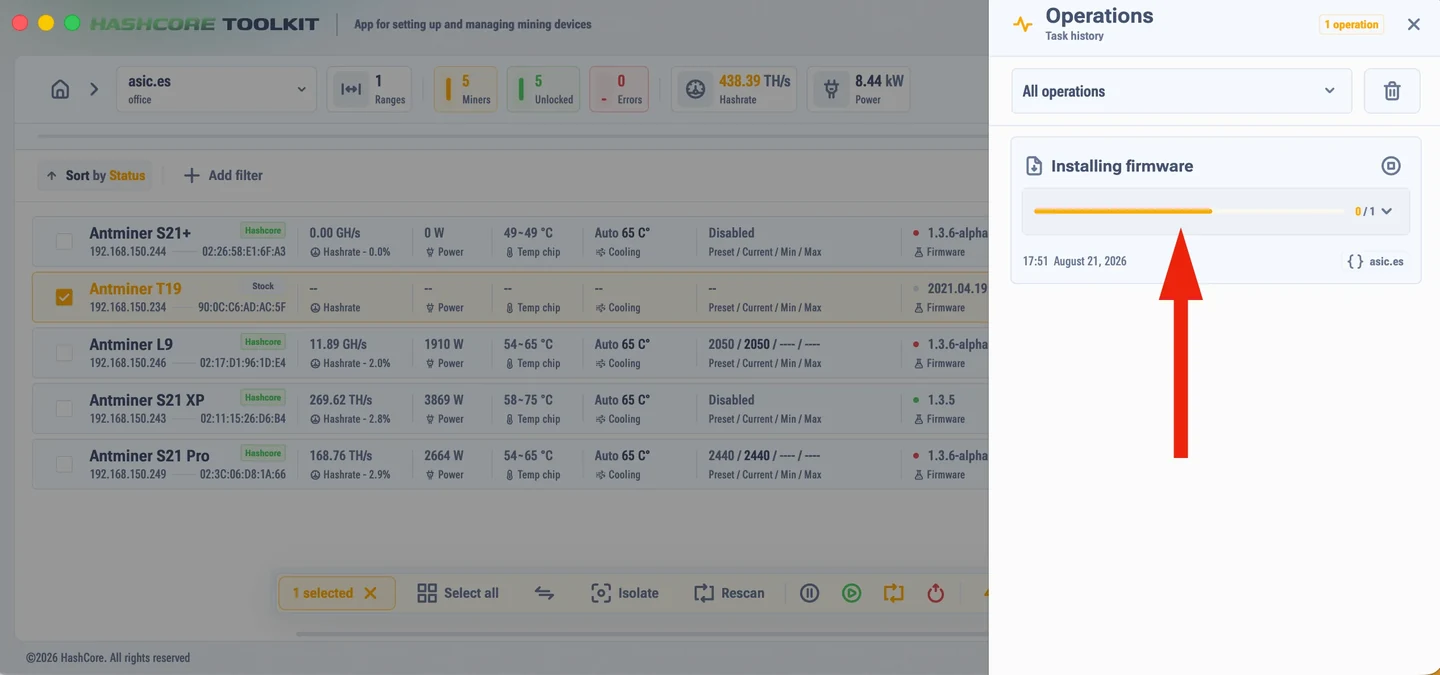
Flashing a whole group of miners at once
The same ten steps work for one miner and for a hundred. The only difference is that in a group you select not one device but all the ones you need, and run "Install the firmware" once.
Building a group. Devices are added by IP range or CSV import, and then combined into groups by rack, room or model. While scanning, the Toolkit detects the address, the model and the control board for every miner it finds.
One operation, one build. A firmware file fits only its own model and board type, so put miners with the same model and board into one operation. A mixed fleet is flashed in several passes, one per combination.
Following the progress. The "Operations" section shows the status of every device, and if something failed, the decoded error is right next to it. You can see at a glance which miners are done and which need attention.
Configuration is bulk too. After flashing, the Toolkit pushes pools, workers, passwords, SSH access and power profiles from a single template, cloning the configuration onto the selected devices. The same place gives you farm monitoring: hashrate, temperatures and errors on one screen.
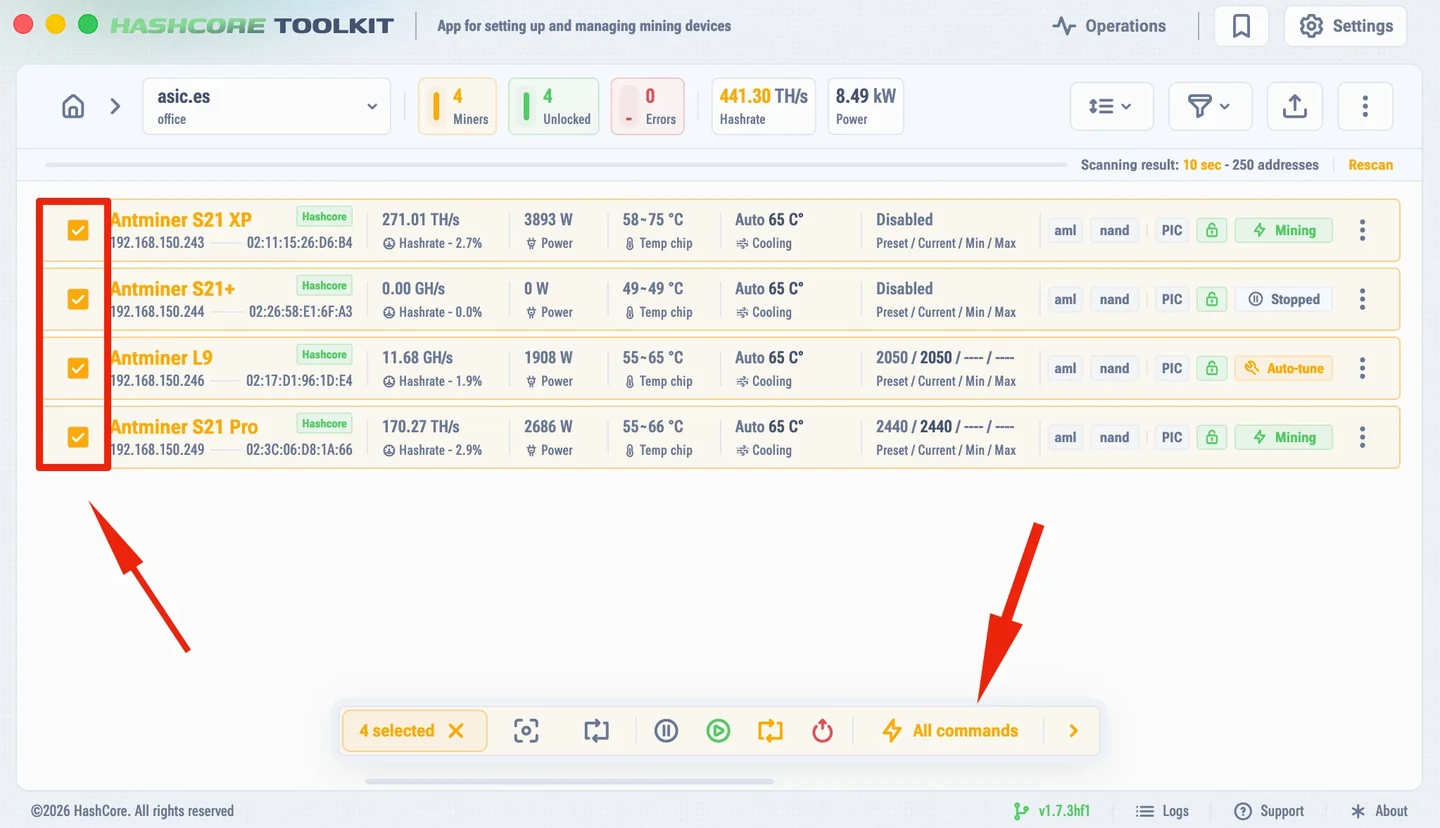
Tick every miner you need at once and open "All commands" once for the whole group.
What to do right after flashing
The firmware is in, the miner has rebooted and is reachable at its IP in a browser. The default web interface password is admin. Five minutes of checking now saves hours later.
Pools. They migrate from the stock firmware automatically, but it is worth opening the "Pools" tab to confirm the addresses and workers are there. Pool priority is respected, the backup takes over when the main one is unreachable.
Cooling. Pick the mode: auto, manual with a fixed fan speed, or immersion. We recommend keeping the target temperature at 65 °C for all models.
Power profile. Either a ready preset for the hashrate you want, or autotune, which sets frequency and voltage per chip individually. Autotune takes 3 to 4 hours and needs stable temperatures without sharp swings, so it is better to start it right away rather than in the middle of a heat wave.
Security. Change the admin password to a strong one with letters, digits and special characters. If needed, change the SSH port or disable SSH entirely.
Check. On the overview tab look at the current and average hashrate, board temperatures, power draw and the number of hardware errors. The chip map shows whether any zones on the boards are in trouble.
Compatibility and special cases
If stock BITMAIN firmware will not flash via the Toolkit and you get an SSH error, first install the stock SD image for your model and control-board type, then repeat the AsicBoost installation.
Common errors and what they mean
The Toolkit shows the decoded error right in the "Operations" section. Below are the ones that come up most often and what to do about them.
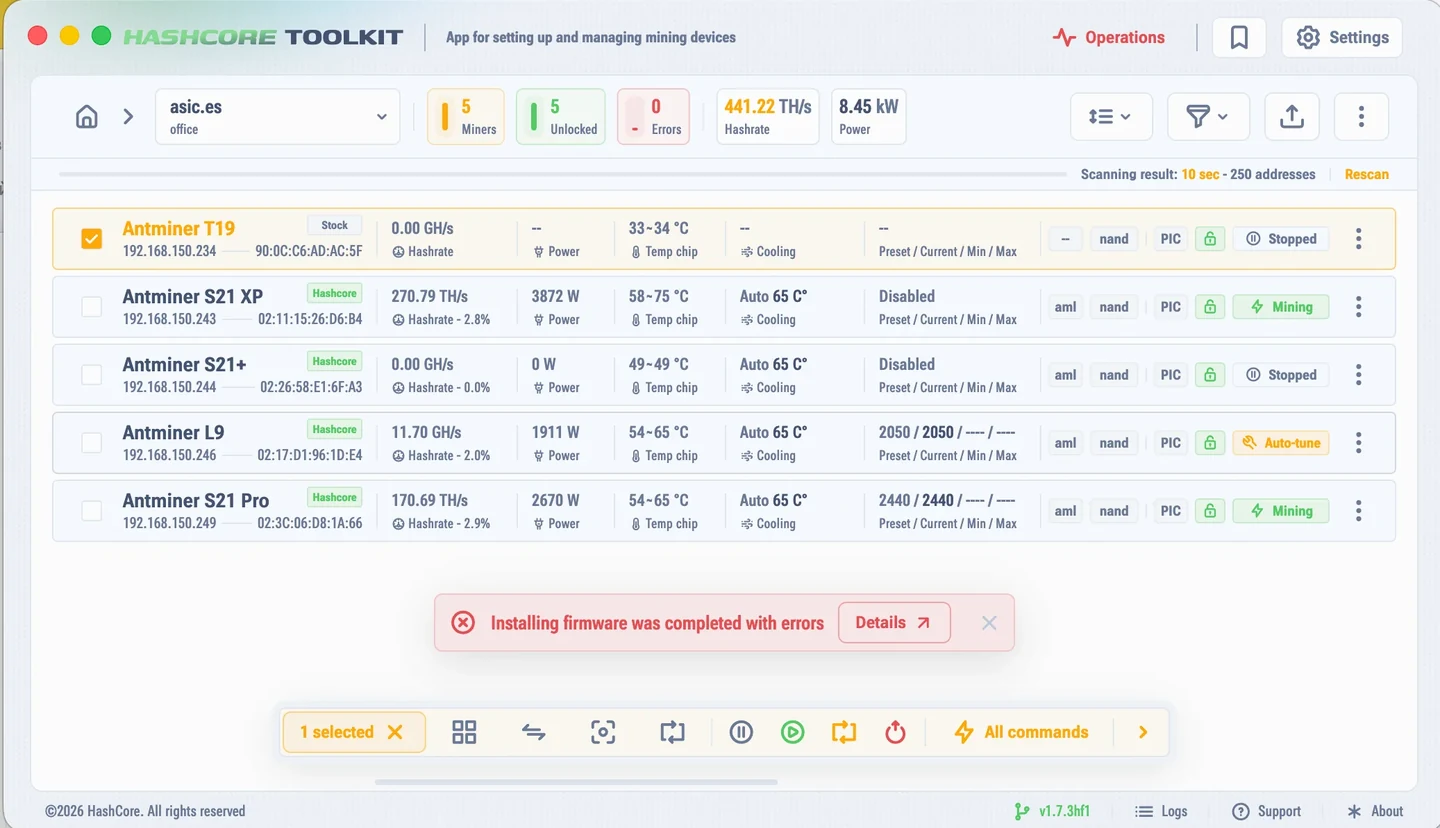
If the installation ends with an error, Toolkit shows a banner and the "Details" button opens the reason.
SSH error while installing over stock. It means the factory firmware has closed access. Install the stock SD image for your model and control board type, then repeat the AsicBoost installation.
The miner is not found during the scan. Check that its address falls inside the range you set, that the miner password is correct, and that "Custom password for unlock device" is enabled if the root password was changed.
The install fails on L9, S19k Pro or an AML board. Antminer L9 with FR-1.19, Antminer S19k Pro with FR-1.28 and Amlogic (a113d) boards with firmware from September 2025 or newer are closed to the standard route. For these, the AML unlock over UART comes first.
A CV board reverted to stock after a reboot. This is how CVitek boards behave: the firmware installs, but a reboot or a power loss restores the factory one. Phoenix-scanner or the "CV recovery" option in the Toolkit fixes it.
"Dev fee offline". Update the firmware to the current version or use the "RESOLVE DevFee connection" function.
Temperature sensor error. Check the power, the hashboard cables and connectors and the PSU, switch the miner off for 10-15 minutes and back on. The firmware can ignore faulty sensors, but that is a stopgap, not a fix.
Library error when the Toolkit starts. Install the latest Visual C++ Redistributable (x86 and x64) from the official Microsoft site and restart the app.
Installing firmware was completed with errors: wrong model or control board type. A firmware file fits only its own miner model and its own control board type. Identify the model and the board exactly, then download the matching build.
Installing firmware was completed with errors: wrong folder. The install window must point to the folder that holds the firmware archive. How to pick it is shown in step 8 "Folder and fields", item 1 on the screenshot.
Installing firmware was completed with errors: wrong firmware name or version. The fields follow the file name: for Antminer-t21-aml-nand-v1.3.5-install.tar.gz the firmware name is Antminer and the version is 1.3.5. These are items 2 and 3 on the screenshot in step 8 "Folder and fields".