


Overclocking and autotuning in AsicBoost firmware
Performance: profiles, autotuning, frequencies
The most sensitive section of the firmware. Everything you change here shows up in hashrate, in the power bill, in temperature and in how much life the chips have left.
Start with a profile
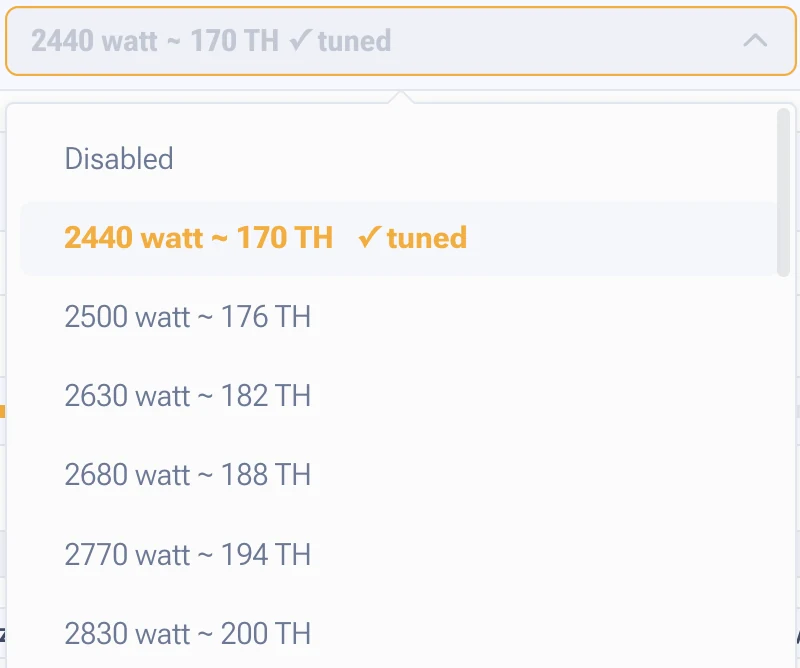
A profile is a ready made set: target power, expected hashrate, frequency and voltage limits. In the list they are labelled plainly, for example 3750 W and 236 TH/s. Pick a profile and the system takes it from there.
Manual overclocking from a blank sheet is for a handful of people. The right path: take the nearest profile, let the ASIC settle, and only then move parameters one step at a time.
Autotuning
It picks frequency and voltage separately for every chip. The point is that chips from one batch differ: stock drives them all the same, while the tuner spreads them across individual settings. Result: higher hashrate, fewer hardware errors, more even heat.
It takes 3 to 5 hours. During that time hashrate jumps around, unstable chips turn up, and the log fills with rollbacks to safe values. All of that is normal. Do not reboot the ASIC while it runs and do not change settings.
Conditions for a good result: steady room temperature and no sharp swings. A tune taken on a frosty night will look too optimistic in summer.
Global frequency and voltage
Two sliders that set the base for every board. Example values: frequency 715 MHz against a nominal 705 MHz, voltage 12.71 V against a nominal 12.54 V. Buttons that reset to nominal sit next to them.
One detail matters: global values are available only on a tuned profile, and every change is stored inside that profile. In the mode without a profile the parameters apply to the whole ASIC, and the settings saved in a profile are not used.
Frequency hierarchy
- ASIC frequency. The top level, it can be overridden below.
- Board frequency. Each board takes either its own value or the shared one.
- Chip frequency. Each chip takes the board frequency, the shared frequency or its own.
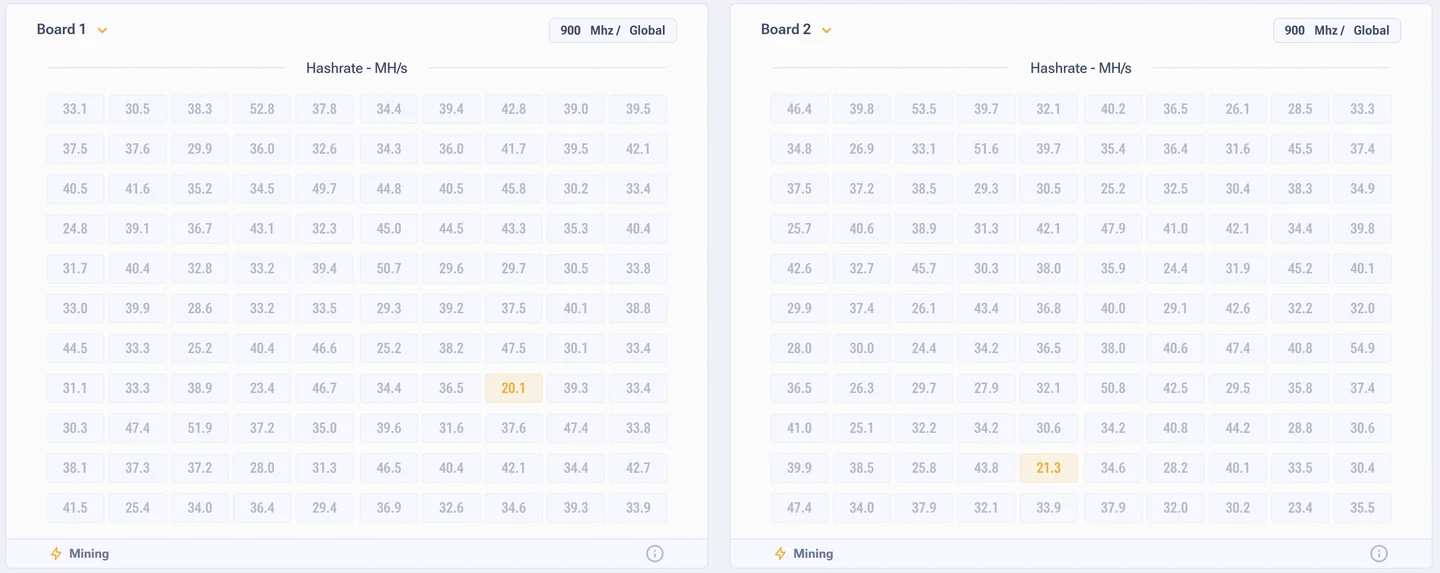
Which leads to the important conclusion: the global value is a target, not a hard lock. The firmware lowers frequency on individual boards by itself and compensates for unstable chips so the ASIC keeps running. Different frequencies across boards in the table are normal.
Chip table
For each board you see the current frequency, the deviation from the global one and per-chip hashrate in GH/s. The display modes switch between hashrate, errors, frequencies, heat map and sensor temperatures. The mode changes only the picture, it has no effect on how the ASIC runs.
Roughly even values across chips are normal. Chips that lag noticeably mean degradation or overheating on one part of the board.
Automatic profile switching
The function raises and lowers the preset by itself depending on chip temperature, power draw and stability. Useful where conditions drift: day and night, a farm with nobody watching, weak cooling in summer.
| Parameter | Range | What it means |
|---|---|---|
| Raise if temperature is below | 20 to 85 °C | The highest chip temperature is under the threshold, the profile goes up |
| Lower if temperature is above | 25 to 90 °C | The highest temperature has reached the threshold, the profile goes down |
| Measurement time | 1 to 10 minutes | Averaging before a decision. 5 minutes is recommended |
| Do not raise above | from the profile list | A ceiling, so you stay inside the electrical limit |
| Do not lower below | from the profile list | A floor, so you do not lose too much hashrate |
| Allowed power overshoot | % or W | The profile drops when the watt limit is exceeded |
Two more switches: top preset override returns the ASIC to the last stable profile after an error, and ignoring fan speed is for setups where an external system handles the airflow.
Rules that save chips
- Change one thing at a time: either frequency or voltage. Both at once and you will not know which one worked.
- After each step give it a day of watching. Errors do not surface right away.
- Errors started, step back, not another five megahertz forward.
- A modified power supply is switched on with the LC toggle. If your power supply is stock, that toggle has to be off.
- When you move from a profile to the mode without a profile, board and chip frequencies are not reset automatically. To get back to the global values, reset the settings on each board by hand.